During a recent Security Copilot demo, a customer asked an excellent question: “Can these agents run PowerShell?”
The short answer is not directly. Security Copilot does not execute arbitrary PowerShell commands like a runbook or automation platform would. However, it appears technically feasible to accomplish similar outcomes by triggering automation through existing Microsoft services.
It may also be inaccurate to think or agents in terms of procedural logic like PowerShell. It is likely more predictable and less expensive to use an Azure Logic App, Azure Function, or Automation Runbook for PowerShell but talking through this is a good exercise to help explain these agents.
For example, an agent could potentially trigger an Automation runbook, invoke a Logic App, or Defender Live Response using an API to perform a scripted task on a device. These methods have not been formally tested or documented, but they represent realistic options for securely extending Copilot into operational automation.
Understanding Plugins and Agents in Security Copilot
Plugins and agents both expand what Security Copilot can do, but they serve different purposes.
Plugins are connectors that allow Copilot to access data from other systems such as Microsoft 365 Defender, Sentinel, or ServiceNow. They bring external context into the model, helping it generate responses that are more accurate, timely, and informed by real organizational data.
You can think of plugins like a professor’s private library. When Copilot receives a question, it can consult its collection of trusted sources rather than relying only on its own knowledge. This allows Copilot to ground its reasoning in facts drawn directly from live systems rather than static training data.
Agents, in contrast, are goal-oriented workflows that use plugins and built-in tools to complete multi-step investigations or analysis. They interpret a user’s intent, gather relevant data, and produce a meaningful outcome such as summarizing an incident or correlating threat data across systems. For now, agents are primarily used for reading and analyzing data rather than executing actions.
In short, plugins provide the data, and agents use that data to achieve outcomes. Together they form the foundation of how Security Copilot builds context, supports investigations, and enhances decision-making across the security ecosystem.
Understanding Security Copilot Agents
In simple terms, a Security Copilot agent is an AI-managed automation that listens for certain prompts and then performs an action or analysis on your behalf.
If you have used workflow tools like Logic Apps or plugins in Copilot, the concept is similar. An agent waits for a matching phrase or intent such as “scan a device for malware” or “shut down server DC01” and then runs predefined steps. Though rather than running these steps sequentially, the agent decides how best to proceed.
When you issue a prompt, Copilot checks its list of available agents to see if any matches that capability. If a match is found, the corresponding agent activates, gathers the necessary information, carries out the task, and often returns a response to the user.
Each agent includes:
- A name and description that define its purpose.
- One or more tools (also called skills) that perform reasoning, queries, or external actions.
- One or more triggers that determine how and when the process begins.
Triggers can be prompt-based (activated by a user request) or scheduled (set to run automatically at specific intervals). Scheduling allows agents such as reporting or monitoring automations to run in the background when resources are more available. Agents can also be linked to a specific workspace to control resource usage and manage Security Compute Units (SCUs).
Custom agents are created by users with the Security Copilot Contributor (authorized users) the Owner (administrator) role. Contributors can build private agents, while owners can publish agents for use across the organization.
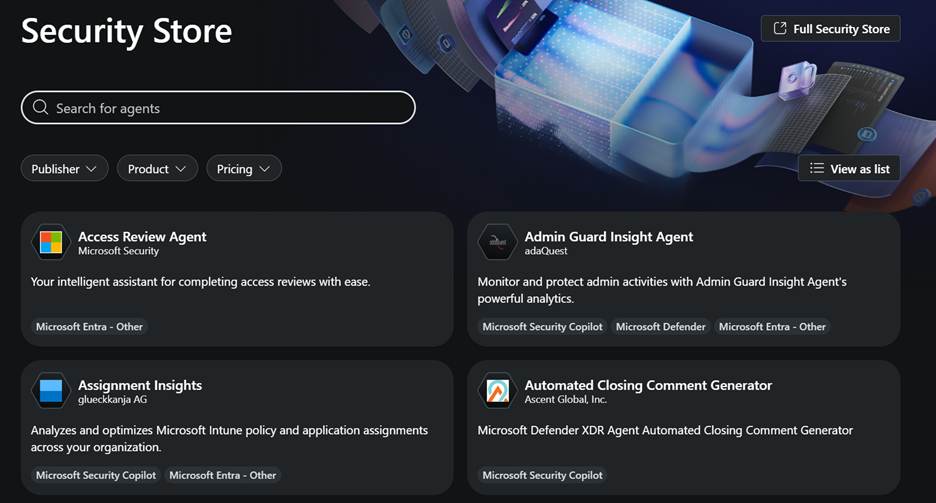
The Security Store contains Microsoft-published and partner-built agents that can be imported directly. These store agents cannot be edited or reused as templates, since their underlying manifest files are not visible.
Tools (Skills) and Their Types
Security Copilot uses the terms tools and skills interchangeably. Each tool represents a specific capability the agent can use, such as reasoning, querying, or calling an external API.
| Tool Type | Description | Creation Method |
|---|---|---|
| GPT Tool | Performs simple reasoning, summarization, or data extraction tasks. Think of it as assigning Copilot a short reasoning job, such as interpreting results or parsing inputs. | Web or manifest |
| Agent Tool | A more advanced GPT-based tool that coordinates other tools. It uses a system prompt with instructions instead of traditional logic to determine how and when child tools are used. | Web or manifest |
| KQL Tool | Executes Kusto queries against Microsoft Sentinel or Microsoft Defender data sources, returning structured analytical results. | Web or manifest |
| API Tool | Connects to REST endpoints to perform operations or collect external data. Uses the authentication method defined in its manifest, such as managed identity, service principal, or API key. | Manifest only |
| MCP Tool | Interfaces with a Model Context Protocol (MCP) server, which serves as a proxy for one or more APIs and provides structured context access, typically for Security Copilot or Sentinel integrations. | Manifest only |
Built-in tools and custom KQL, GPT, and Agent tools run under the permissions of the signed-in user, ensuring that queries and actions are scoped to the user. API tools are an exception, as they authenticate using the method defined in their manifest, such as managed identity, service principal, or API key.
Security Copilot also includes a large library of more than 170 built-in tools that can be used when creating custom agents. These cover a wide range of Microsoft services such as Defender, Sentinel, Intune, Entra, and Microsoft Threat Intelligence, along with a smaller selection of third-party integrations and general-purpose tools for web search, text analysis, and data parsing. The experience feels similar to using Logic App activities, where each tool represents a functional building block that can be combined into a broader workflow. These are your Lego building blocks.
These built-in tools simplify development because they handle authentication automatically and can be added without writing code. Most are query-based, designed to retrieve or analyze data rather than perform direct actions, but they provide an excellent starting point for understanding how agents interact with Microsoft and partner ecosystems. I expect to see more action-oriented tools in the future like triggering a scan.
Unfortunately, if you export the manifest for a custom agent that uses these built-ins, they appear only as pointers, so you cannot view the underlying configuration or code. Developers hoping to learn from these examples will not see the actual logic.
What Is a Manifest?
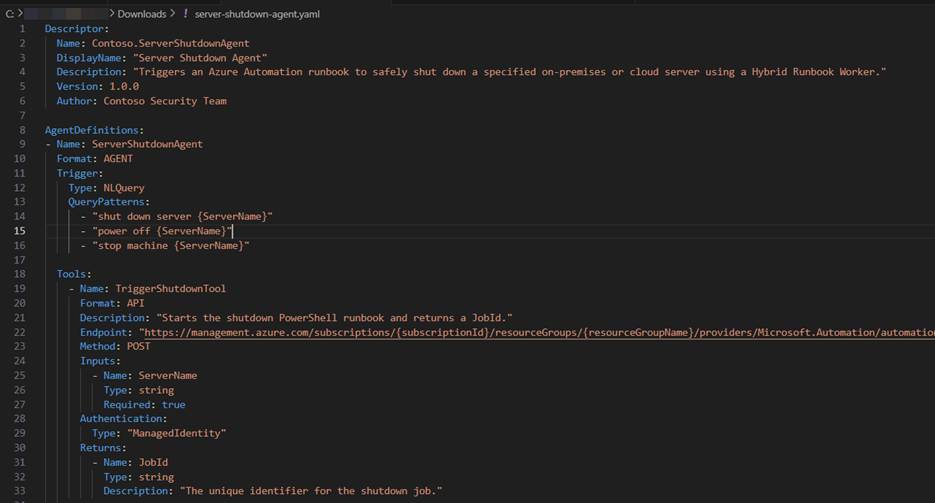
A manifest is a template or configuration file that defines how an agent is built. It includes the agent’s name, description, tools, and triggers, along with instructions on how each piece interacts. Manifests can be viewed and exported from published agents.
Building manifests as code require a degree of trial and error, as documentation is still limited and even code-focused language models are not yet fully trained on manifest syntax. While Microsoft provides sample manifests in the documentation, the structure often needs fine-tuning to pass validation and upload successfully.
Using the manifest-method is currently required if you want to use API or MCP tools, since the web editor only supports Agent, GPT, and KQL types.
In short, a manifest acts as code that defines your agent’s design and capabilities. It is powerful and flexible, but it can take some experimentation to get right. You can create an agent as code by writing a manifest and export manifests from published agents.
How Custom Agents Are Built
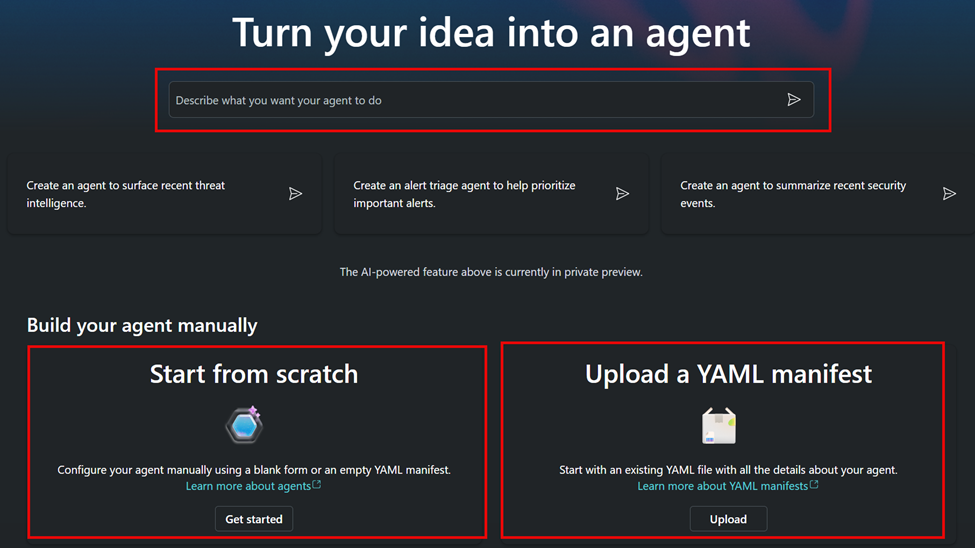
Security Copilot agents can be created in three ways:
- Copilot Assistant Builder – A prompt-based approach where you describe your agent in plain language and let Copilot build a basic version using supported tools (GPT, KQL, or Agent).
- Web Editor – A manual design interface that allows you to define tools, inputs, and triggers directly. The editor also includes a Copilot assistant to help describe tools and prompts.
- Manifest Upload – The most flexible and most difficult method, required for advanced functionality such as API or MCP integration.
One confusing point is that the web editor has no visible Save button. Changes are auto-saved in the background, so it is best to pause briefly after making updates before leaving the page.
Understanding Agent Structure
An agent is the container that wraps its tools and triggers together under one solution. It defines how those components interact and what Copilot should do when a prompt matches its description.
The primary tool in most agents is an Agent Tool, which serves as the brain of the agent. This orchestrator uses a system prompt with step-by-step instructions to determine how and when to use its child tools. The order and choice of tools are not fixed but influenced by context and reasoning, allowing the agent to make decisions dynamically based on input or prior responses.
A typical agent structure might look like this:
Agent Name: ServerShutdownAgent
Description: Safely shuts down a server via runbook.
Triggers:
“shut down server {ServerName}”
“stop machine {ServerName}”
Fetch Tool (optional):
Extracts server name from user prompt and save it in an input variable.
Process Tool:
Starts the orchestration (call the primary agent tool) and provide the inputs.
Primary Agent Tool (orchestrator):
Uses system prompt with instructions:
- Use TriggerShutdownTool to initiate the shutdown and collect the jobID.
- Check the JobID status using the every few seconds until if fails or succeeds.
- Get the final output and return a report to the user.
- Record the results using AuditLogTool for auditing.
- Send an email
Child Tools:
- TriggerShutdownTool (API) – starts the runbook
- GetShutdownStatusTool (API) – checks job progress
- GetShutdownResultTool (API) – retrieves final output
- AuditLogTool (API) – writes entry to Log Analytics
- NotifyOwnerTool (API) – sends result summary
How it works:
- The trigger listens for a matching prompt such as “Shut down server DC01.”
- The fetch tool (optional GPT) extracts the server name and validates input.
- The process tool starts the orchestration by calling the primary Agent Tool.
- The Agent Tool uses its system prompt to reason through the operation and decide which tools to call and in what order.
- Each child tool contributes information or performs an action, with the orchestrator adapting its next steps based on returned results.
- The results are optionally returned to the user.
Agents can have a single trigger and one orchestrator or several triggers, each mapped to different process tools and workflows. Multiple paths allow one agent to handle different actions based on the user’s request.
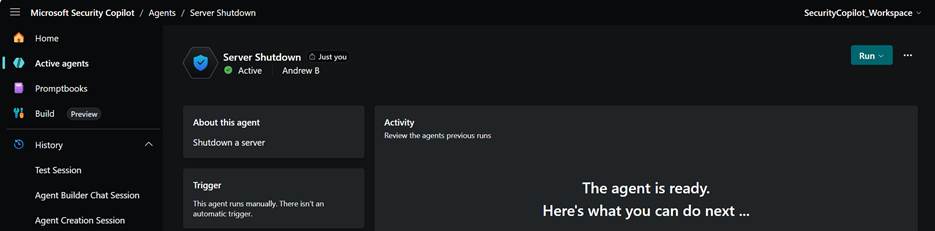
Example: Server Shutdown Agent
To demonstrate this design, consider an agent that safely shuts down a server using Azure Automation and optional validation through Defender for Endpoint.
Step 1: Agent Overview
The Server Shutdown Agent defines one trigger and several tools to execute the workflow.
It recognizes a user command such as “Shut down server DC01” and performs the following sequence:
- Validates the device in Defender for Endpoint.
- Triggers an Azure Automation PowerShell runbook.
- Monitors the job until it completes.
- Logs the results to Log Analytics.
- Optionally sends a notification email to the device owner.
Step 2: Tools and Structure
- Fetch Skill (GPT Tool) – Parses the user prompt and extracts the server name.
- Process Skill (Agent Tool) – Passes the input to the orchestrator.
- Main Orchestrator (Agent Tool) – Uses reasoning to determine the right order of operations and when to call each API tool.
- Child API Tools – Handle each API call (trigger, check status, retrieve results, audit, notify).
Step 3: Trigger Configuration
The trigger defines the language patterns that activate the agent:
- “Shut down server {ServerName}”
- “Power off {ServerName}”
- “Stop machine {ServerName}”
When a user prompt matches, Copilot calls the fetch tool, then the process tool, which passes inputs to the orchestrator.
If a schedule is defined, the same workflow can run automatically, for example, every day at 3 AM to check or shut down idle systems.
Building and Testing the Agent
It is best to approach development incrementally. Start with a simple agent that performs basic actions or uses built-in tools, validate each part, and then add more complex steps once the fundamentals are working.
- Create and test the PowerShell runbook in Azure Automation to confirm proper execution and clean output.
- Validate the API calls (start job, check status, get output) using Postman or curl.
- Build and import the manifest defining all tools and triggers.
- Test in Copilot by issuing a command like “Shut down server DC01.”
- Verify results in Azure Automation and confirm entries in Log Analytics.
- Publish the agent or private or tenant-wide use.
Conclusion
Security Copilot cannot run PowerShell directly, but it is feasible to use it to call APIs that trigger actions, such as Azure Automation runbooks or other automation endpoints. Calling APIs is already supported, which makes connecting to automation platforms through a custom agent both realistic and achievable today.
I have not yet had the time or resources to fully build and test this solution, but it feels practical and well within the system’s intended capabilities. The built-in tools for custom agent creation are still largely query-focused, so most examples today center around retrieving or analyzing information. I think it is likely that Microsoft will continue expanding support for action-based tools that can perform operational tasks such as starting malware scans, enforcing policies, or updating configurations.
Unfortunately, manifest-based agent development is still far from easy. Creating and debugging manifests can be time-consuming, and the limited user interface integration makes building API-driven tools challenging for now. As this experience becomes better integrated into the Copilot platform, I expect it will significantly lower the barrier to developing more capable automation.
Using API-based tools provides a path toward that future, giving Copilot the ability to respond to natural language prompts with meaningful automated actions. While the framework remains somewhat limited in its current tooling, it is a promising foundation for more advanced automation as Security Copilot continues to mature.